Honest. Openminded. Willing! This is what is required of you. This is how IFP works. Read on for a full tutorial on exactly how this site runs, and how YOU can make it even better.
Welcome to the new and FINAL home of IFP. We are going to have some growing pains as we get used to the new digs. For the most part, the functionality will be no different than that of the old Disqus site. What follows is a concise tutorial on how to use this site, and get maximum enjoyment of the benefits and features of IFP at our new WordPress home. Here goes…
Lesson 1: LOGIN
Our new IFP site offers multiple login options. You can login to comment using your Disqus profile, but also Facebook, X, Google and more. At time of writing this, Facebook is still glitchy, but I’m working on it.

Once you are logged into IFP, you will see a little circle to the bottom-right of your avatar. This signifies which login platform you are using to participate with at IFP. It makes no difference which one you login with, you are still logged in to IFP.

That little G to the bottom right of my Avatar signifies that I’m logged into IFP via Google (also Gmail). If you see a D within a blue circle, that signifies that you are logged into IFP via your Disqus profile. If you see neither of these, it means you are logged directly into WordPress (which is the best way to do this).
Please note that no matter what login credentials you choose to use to login to the new and future IFP, you are logging into WordPress. More on this later.
Lesson 2: X (TWITTER POSTS)
To post an x.com link (formerly twitter.com) and to have it render properly within a comment, there are a few minor steps that you must take in order for everything to appear properly within the comment.
First, go to the actual X post and copy the text showing in the address bar as follows:
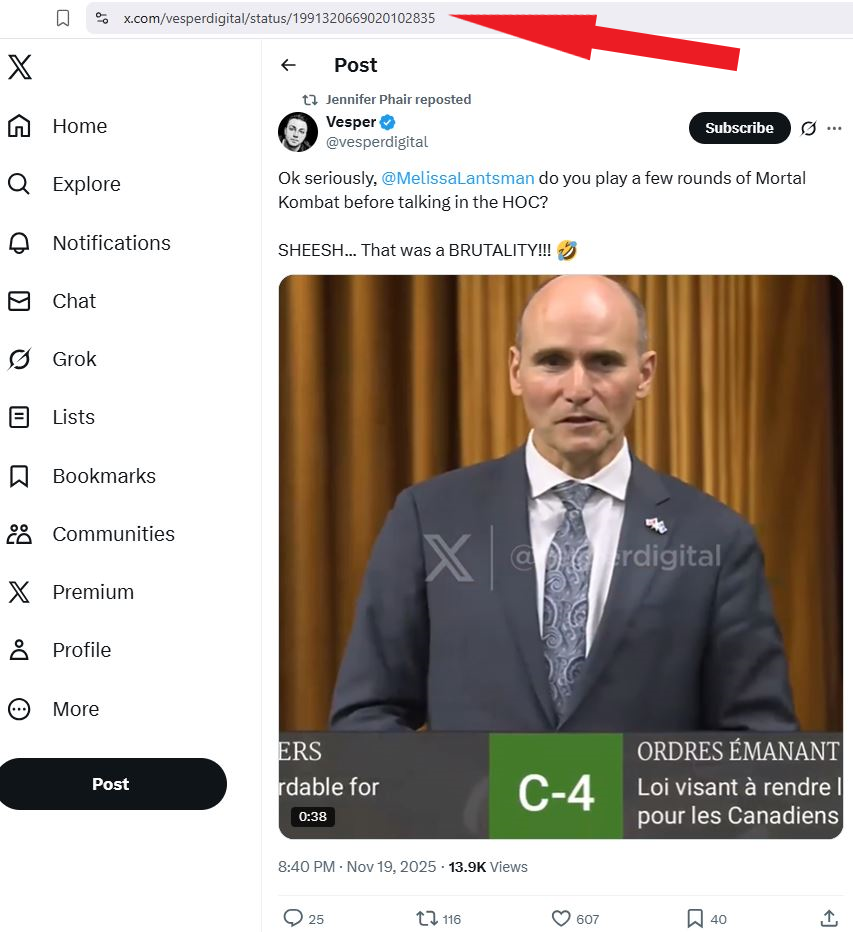
Then, paste that address directly into the IFP comment box as shown below:
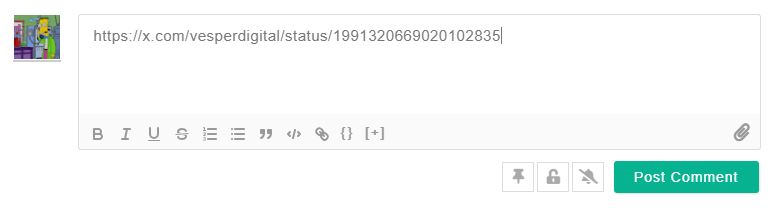
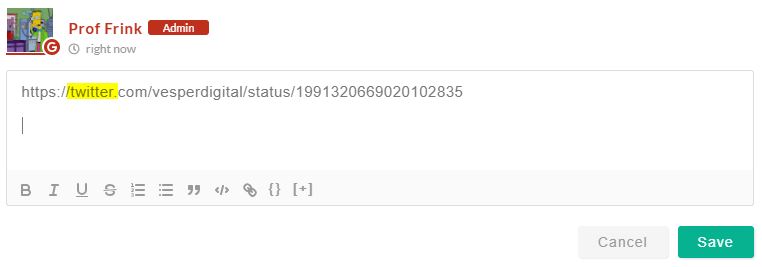
Good work. However, leaving the address as is will not make the X post appear properly in the comment section of IFP. Since x.com is a new thing, you must change “x.com” to “twitter.com” prior to hitting Post Comment. Otherwise it is just show up as a link:

Once you change “x.com” to “(you can also change it after posting if you forget to do so). See below:
Once you have made the change, either during the original post, or during post-edit, hit Post Comment or Save, and the Twitter (X) Post will appear correctly:
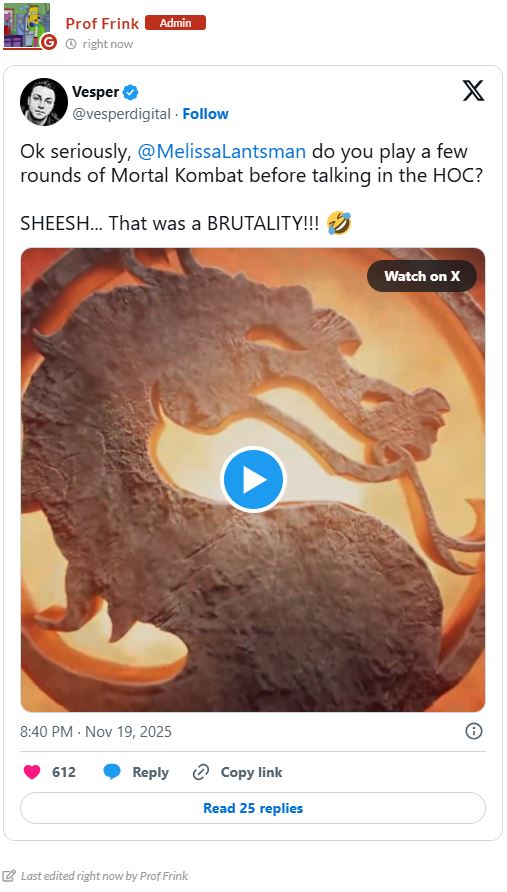
If your post still doesn’t appear properly, you have made a mistake somewhere along the way…

Lesson 3: NOTIFICATIONS
Being logged in to IFP, you will be notified of many things. This is much like the Disqus environment, just different. For example, while looking at the comments section of any given post, you will see a green comment icon (usually located) to the bottom left of your screen. This shows the number of comments (live) and if there are any new comments posted that you have yet to see within a small orange dot (also live).

If you click the orange dot, you will be taken to the new comment for your to read. If you see a number greater than 1, you will be taken to the newest new-to-you comment. Should you choose to then scroll up and down the comments section, and while doing so, a new comment is posted by another IFPer, that comment will appear highlighted in BLUE until you spend some time looking at it.