
In a previous article, written from the point of view of somebody who is definitely not an IT guy, I described two ways contributors can start discussion posts on IFP. The article may be viewed here
This time I will go into some detail on how to add images and videos to your posts. As mentioned in the previous article, IFP is not a Disqus channel so contributors who are familiar with that environment will notice some differences at IFP. For example, the “drag and drop” method sometimes used to add images on Disqus channels does not work on IFP except in the Disqus comment section. Also, on Disqus channels you are limited to using the URL to add videos but on a WordPress site like IFP you have some additional options not available on a Disqus channel.
So here is what you should know to get started posting images and videos on IFP.
Adding images and videos as a Community Author
Anybody can initiate a discussion at IFP as a guest by starting from the Author a Post button at the top of the IFP home page. A WordPress account is not needed. When you click the Author a Post button you will see a short 8-step list of instructions followed by a post editor as shown in Figure A.

Most common problems can be avoided by closely following the instructions in sequence. The most foolproof way to add an image to your post is to first save an image from the source article to your computer, then add that image to your post using the blue Upload Image button. Do not use the Add Image button. Using the blue Upload button will ensure that your image appears in two locations, at the top of your post and on the homepage link to your discussion
Videos may be included in the body of your post by copy/pasting the YouTube URL into the body of your discussion post where you want the video to appear.
The guest method produces a simple basic discussion post similar to what appears on Disqus channels. It is best to keep it short and simple and let the reader use the source URL to view most of the images, videos, etc. in the original article.
Adding images and videos as a WordPress Author
Contributors who join IFP as WordPress Authors will enjoy the fastest, easiest ways of creating discussion posts. Additionally, Authors have access to many creative possibilities unavailable to guest posters or Disqus channel contributors. Figure B shows one of the post editors used by Authors on IFP.
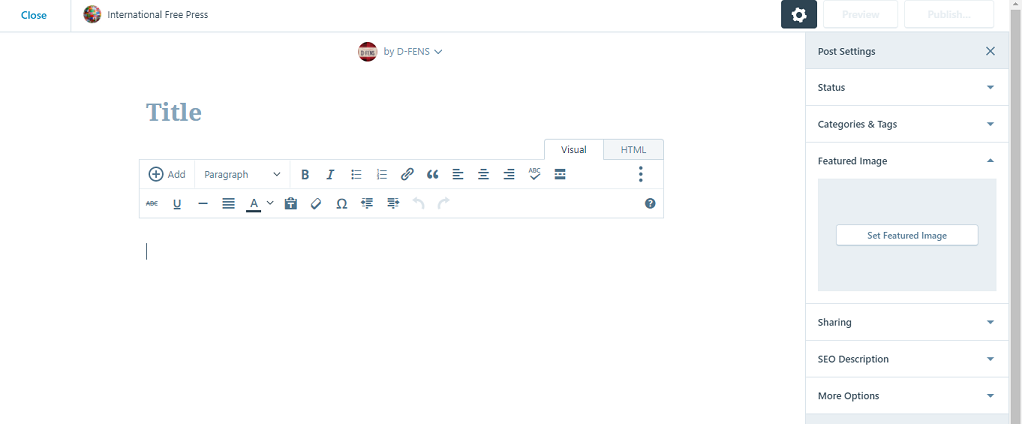
The Set Featured Image button in the right-side panel is used to add an image that will appear in two locations, at the top of your post above the title and also on the home page link to your discussion.
A fast and easy way to add an excerpt to your post is to copy a large single block of content from the source that includes text, images, videos, Tweets, etc. and paste it directly into the post editor. You can then edit out any parts you don’t want to appear in your post by simply backspacing over them.
An individual image may be added to your post by first copying it from the source, then place your cursor where you want it to appear in your post and use the Add button to insert the image.
The simplest way to add a video to your post is to copy and paste the YouTube URL into the body of your post where you want the video to appear.
Adding videos using HTML embed code
Many videos embedded on news media sites and elsewhere can not be copied from YouTube, but on IFP it may still be possible to embed them in your discussion post by copy/pasting an HTML embed code. This option is unavailable on Disqus channels.
Sound complicated? Not really.
Start up the video at its source and watch for one of the share icons in Figure C to appear:

Clicking on one of these icons will present you with several options such as Facebook, Twitter, email, etc. Possibly it will offer you a URL but it will probably be the URL for the webpage you are looking at, not the video itself. What you are looking for is an icon that looks like Figure D, possibly with the word embed beside it.

Clicking on this icon will present you with an HTML embed code which you can copy and paste into your post. If you toggle your post editor from visual to HTML and paste the embed code, it will look like Figure E:
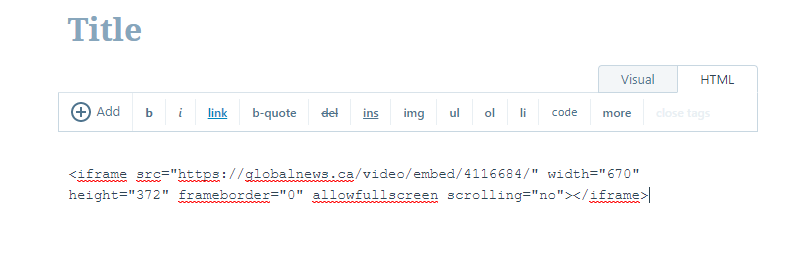
and then when you toggle your post editor back to the visual tab, a video box should immediately appear in your discussion post, as in Figure F.

I have found that this procedure works flawlessly embedding videos from Global News and it usually works with CBC videos but so far I have not had much success with videos from some other sources such as Fox News. The experiments will continue.
So that’s some of what I have learned in recent weeks as a wet behind the ears IFP WordPress Author.
I hope some people with previous experience starting discussions on Disqus channels (and other IFP WordPress Authors) will be able to find enough information above to get started posting discussions on IFP. If you run into any roadblocks please leave a comment below and I try to find a solution and add it to this discussion post.
Thanks in advance for your interest in helping to improve International Free Press.
internationalfreepress.com